
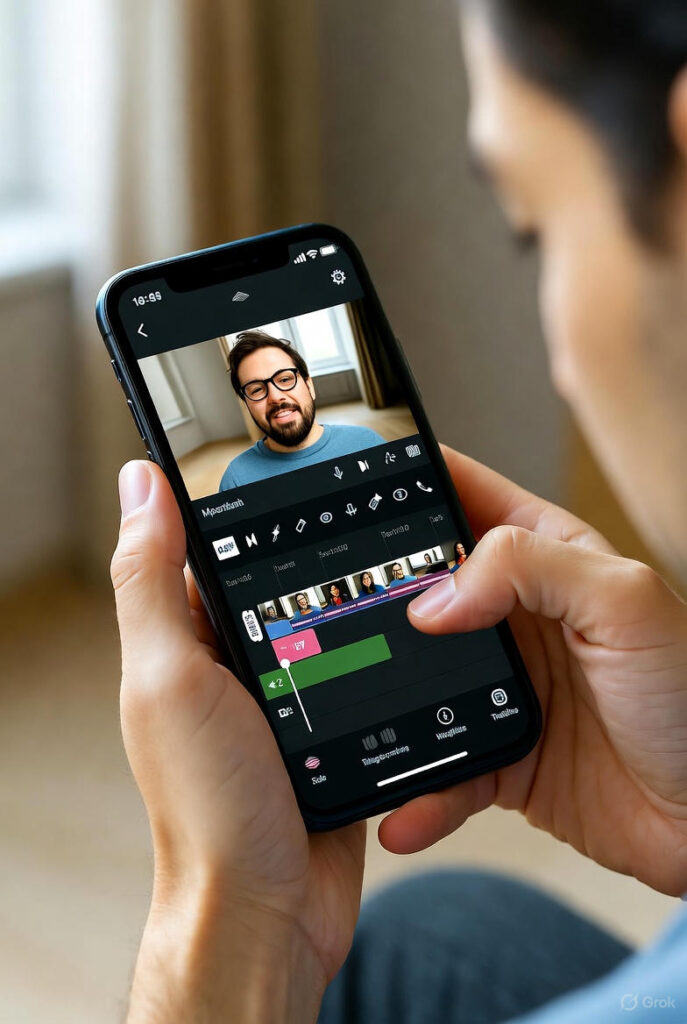
Want to edit videos on iPhone for free? You don’t need CapCut, InShot, or any paid app. Apple gives free tools in every iPhone. This guide shows step-by-step how to edit like a pro. No watermark. No extra app. Works on iPhone 8 to iPhone 16.
Why Use Built-in Tools?
100% free
No ads
Fast editing
4K export
Safe and legal
No internet needed
Let’s start
Method 1: Edit Video in Photos App (Super Easy)
1. Open Photos app
2. Tap Albums → Videos
3. Choose your video → Tap Edit (top right)
Trim Video
Drag yellow bars left/right
Shorten start or end
Tap Done
Add Filters
Tap Filters (bottom)
Choose Vivid, Dramatic, or Mono
Adjust strength with slider
Crop & Rotate
Tap Crop
Pinch to zoom
Rotate with two fingers
Tap Done
Adjust Light & Color
Tap Adjust
Increase Brightness, Contrast, Warmth
Make video pop
Save: Tap Done → Video saves automatically.
Method 2: Add Slow Motion (Photos App)
1. Open video → Edit
2. See yellow bars at bottom?
3. Drag inner lines close together
4. Video slows down!
5. Tap Done
Pro Tip: Record in 1080p 240fps for best slow motion.
Method 3: Use iMovie (Free Apple App)
1. Open App Store → Search iMovie → Get (free)
2. Open iMovie → Tap + Create Project → Movie
3. Select video → Create Movie
Add Music
Tap + → Audio → Soundtracks
Choose Cinematic or Pop
Drag to fit length
Add Text
Tap T → Choose style (Basic, Lower Third)
Type: “Follow for Tech Tips”
Change font, color, size
Add Transitions
Between clips → Tap diamond icon
Choose Cross Dissolve or Slide
Export
Tap Done → Share → Save Video
Choose 4K or 1080p
No watermark
Pro Tips for iPhone Video Editing
Tip | How to Do
Shoot in 4K | Camera → Settings → Record Video → 4K at 60fps
Use Portrait Mode | For background blur
Add Voiceover | iMovie → Microphone icon
Save to Files | Share → Save to Files (backup)
Edit in Landscape | Rotate phone for better view
Common Mistakes to Avoid
- Don’t use third-party apps with ads
- Don’t export in low quality
- Don’t forget to backup original video
- Don’t record in low light
- Don’t skip stabilization
FAQ’s
Can I edit videos on iPhone without iMovie?
Yes Use Photos app for trim, crop, filters, and slow motion.
Is iMovie really free?
Yes. 100% free on App Store. No in-app purchases for basic editing.
Does iMovie add watermark?
No. Export is clean.
Can I add text in Photos app?
No. Use iMovie for text.
How to export in 4K?
In iMovie → Save Video → Choose 4K
Conclusion
You can edit videos on iPhone for free using Photos and iMovie. No need for CapCut Pro or paid apps. This guide showed you **trim, crop, filters, slow motion, music, text, and 4K export — all free. Apple’s tools are fast, safe, and legal. Start with **Photos app for quick edits.
Use iMovie for pro effects. Record in 4K 60fps for best quality. Save to Files for backup. Avoid mod APKs and unsafe apps. Try this today and make your first Reel! Which method will you use first? Comment below and follow for more free tech tips. Your iPhone is now a video editing studio.